
ICMP Timestamp (CVE-1999-0524) Now Fails PCI Scans: What Changed and How to Fix It on a FortiGate
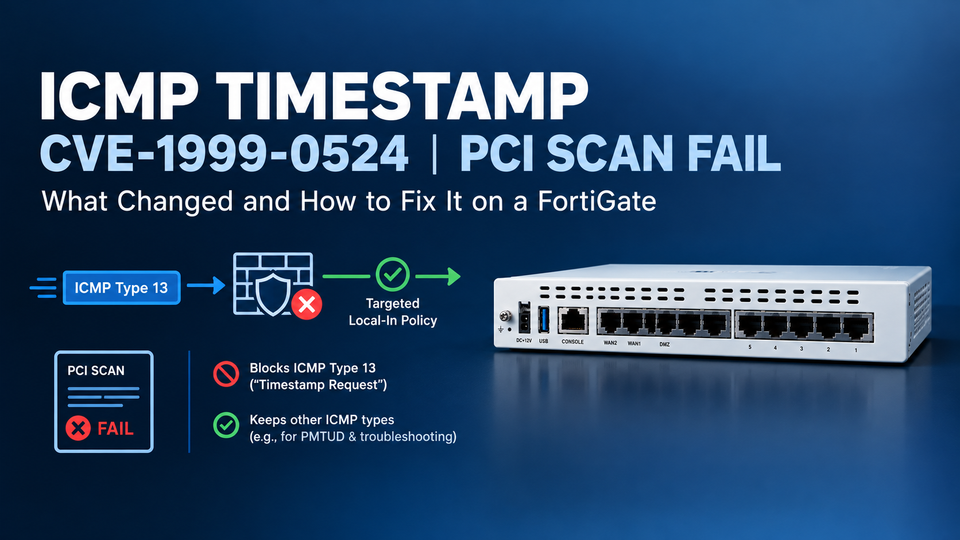
If your PCI external scan started failing this quarter and nobody touched the firewall, you’re probably not imagining things.
On September 11, 2026, Qualys updated the detection logic and PCI classification for QID 82003, ICMP Timestamp Request (CVE-1999-0524). Its CVSS v3 base score is now 4.0, which meets the PCI severity threshold. Scans run before the update may have passed it. Scans run after it can report the same finding as a PCI FAIL. Qualys notes that nothing about the target host has to have changed. The vulnerability’s classification did.
What the finding is
ICMP timestamp messages let a remote system ask a device what time it is. They’re an old protocol feature that almost nothing legitimate uses today, but many firewalls and other devices still answer them. When yours does, an anonymous scanner learns your system clock. That’s a small information disclosure, but PCI scanning treats it as reportable.
How to fix it on a FortiGate
If the scanned address is the firewall’s own WAN interface, block ICMP type 13 inbound with a local-in policy. On many FortiOS builds the GUI shows the Local-In Policy page but can’t create entries, so use the CLI console (the >_ icon in the top right):
1) Click the >_ (CLI Console) icon in the top-right of the GUI.
2) Find your WAN interface name under Network > Interfaces (e.g., wan1, port1, wan).
3) If you already created the ICMP-TIMESTAMP service in the GUI, skip this. Otherwise, create it by pasting:
config firewall service custom
    edit "ICMP-TIMESTAMP"
        set protocol ICMP
        set icmptype 13
    next
end
4) Create the local-in policy, replacing wan1 with your interface:
config firewall local-in-policy
    edit 0
        set intf "wan1"
        set srcaddr "all"
        set dstaddr "all"
        set action deny
        set service "ICMP-TIMESTAMP"
        set schedule "always"
        set status enable
    next
end
5) Confirm it saved:
show firewall local-in-policyReplace wan1 with your WAN interface and repeat for each WAN link. If the scanned address is a VIP or a host behind the firewall, create a regular deny policy for ICMP type 13 above the policy that allows that traffic.
Only block type 13. Don’t turn off ICMP broadly. Path MTU discovery and basic troubleshooting depend on the other ICMP types, and breaking them causes its own outages.
Then rescan, or test from outside with nmap -sn -PP <your-wan-ip>.
Why this is an audit problem
Firewalls like FortiGate are everywhere in small and midsize businesses. They offer enterprise-class features at SMB prices, and MSPs deploy them widely. The catch is that a firewall working isn’t the same as a firewall being hardened. Most devices ship with defaults that favor convenience, and nobody looks at what the internet sees from the outside until a scan does. Findings like this sit unnoticed until a quarterly scan, or worse, an assessment, surfaces them. A network professional who audits your perimeter from the outside, on a schedule, finds these items while they’re cheap to fix and before they cost you an attestation.
Compliance isn’t a measure of whether you’ve been breached. It measures whether your configuration holds up under a consistent, repeatable test, and the test doesn’t grade on effort. Small findings count the same as large ones.
If you have a firewall facing the internet and don’t know when someone last looked at it from the outside, that’s the first thing to fix.
Source: Qualys, “QID 82003 (ICMP Timestamp Request) Now Reported as a PCI Fail” (https://success.qualys.com/discussions/s/article/000008709)